SUCC Now Supports paying online via GCash. All you need to do is follow the steps below.
1
Open your GCash App
Launch the GCash application on your mobile device.
2
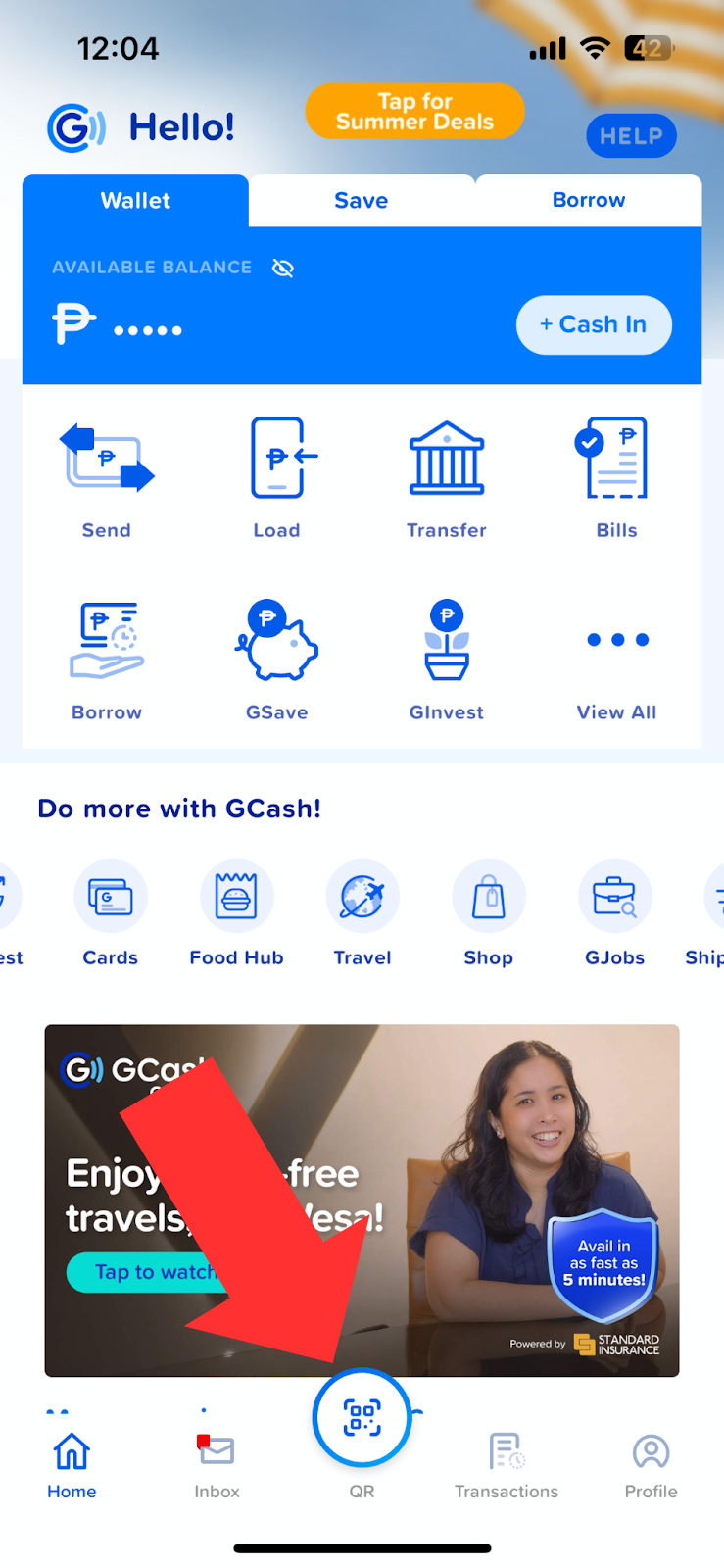
Press the Scan QR Button
Tap the Scan QR button on the GCash home screen.
3
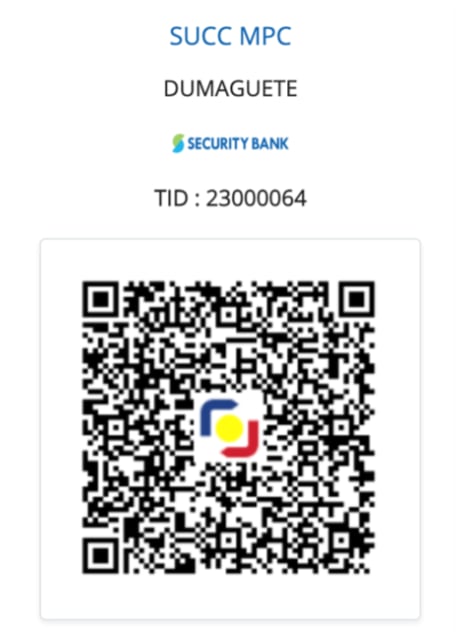
Scan the Provided QR Code
Point your camera at the SUCC GCash QR Code provided below to scan it.
4
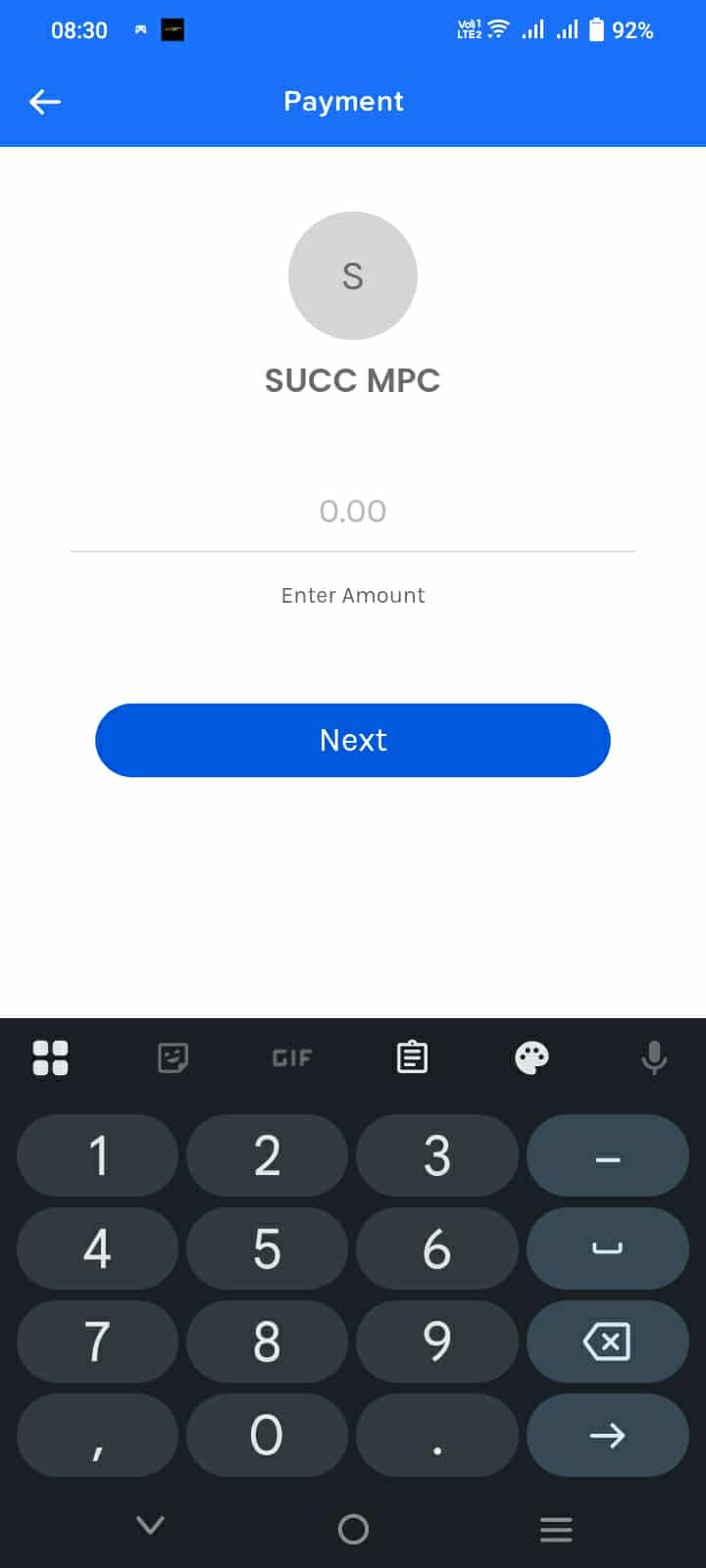
Input the Amount You Wish to Pay
Enter the exact amount you would like to pay.
5
Confirm Payment
Review the payment details and tap Confirm to complete your transaction.
6
Take a Screenshot of the Transaction Receipt
After your payment has been confirmed, take a screenshot of the transaction receipt.
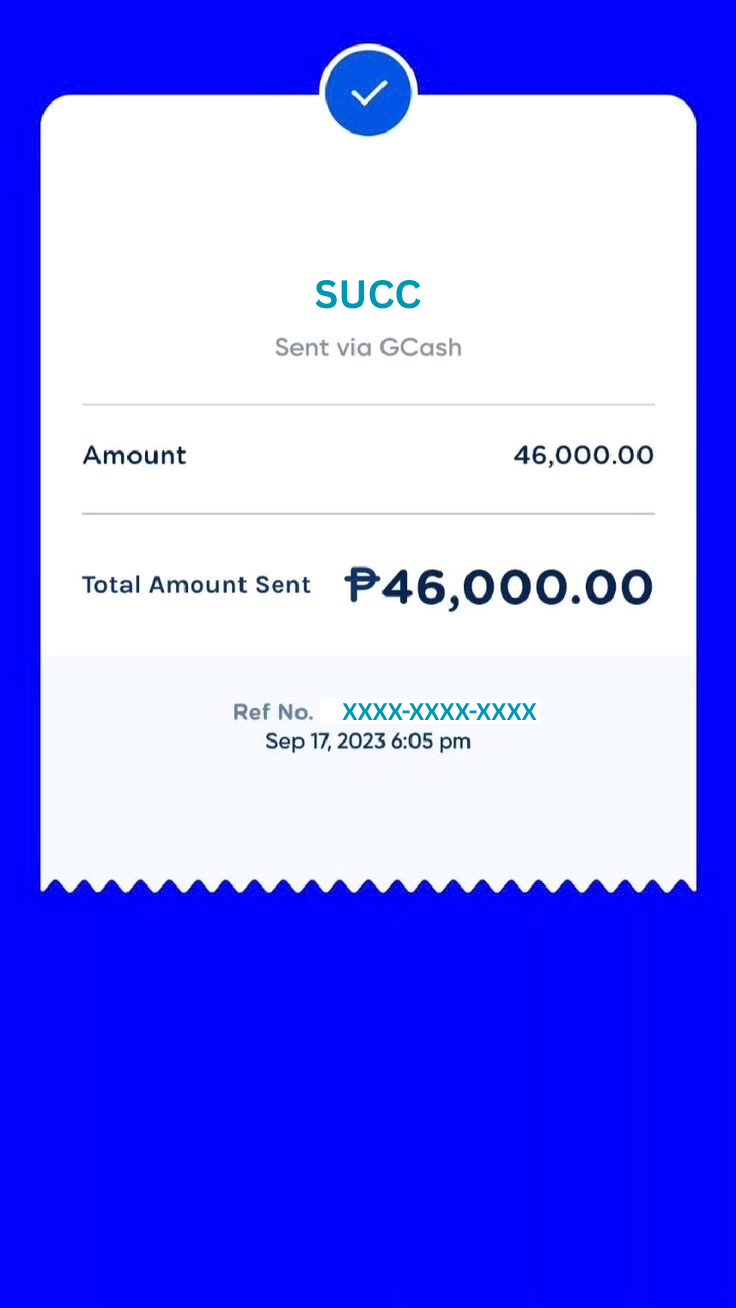
*Different devices may have different ways to take a screenshot. Please refer to your device’s guides for information on how to take a screenshot for your particular device.
7
Send the Screenshot via Email to Accounting
Send the screenshot as an email to accounting@succ.coop using the following format:
Email Title: [Your Name] GCash payment for [Purpose of Payment]
Email Contents:
In this email is the screenshot to my GCash receipt for the payment of [purpose of payment] for [Your Name]
[Screenshot of your GCash transaction receipt]